
 Smart Agent Teams
Web app tour
Every screen in the SAT web app, what it shows, what you can do there and the question it answers.
The web app is the board's control panel. Every screen is designed to answer three questions: what is happening, does it need me, and what do I do about it. This page walks through each route in the order of the sidebar.
Layout
Every company screen lives under /c/{companyId}/ and shares one shell:
- Sidebar (left): the company switcher at the top; New task (
C) and Search (⌘K); Dashboard with a live count of active runs and Inbox with a count of items that need you; your Pinned agents and projects and saved Views when you have any; then the Work, Org and Company sections. At the bottom are your account menu (with the live-updates dot on your avatar) and the collapse button ([). A collapsed sidebar becomes a narrow rail of icons. - Top bar: breadcrumbs, and on task and agent pages a button to show or hide the properties panel (
]). - Phones: the sidebar moves into a drawer behind the menu button, and a bottom bar gives Home, Inbox, a round New task button, Tasks and Agents.
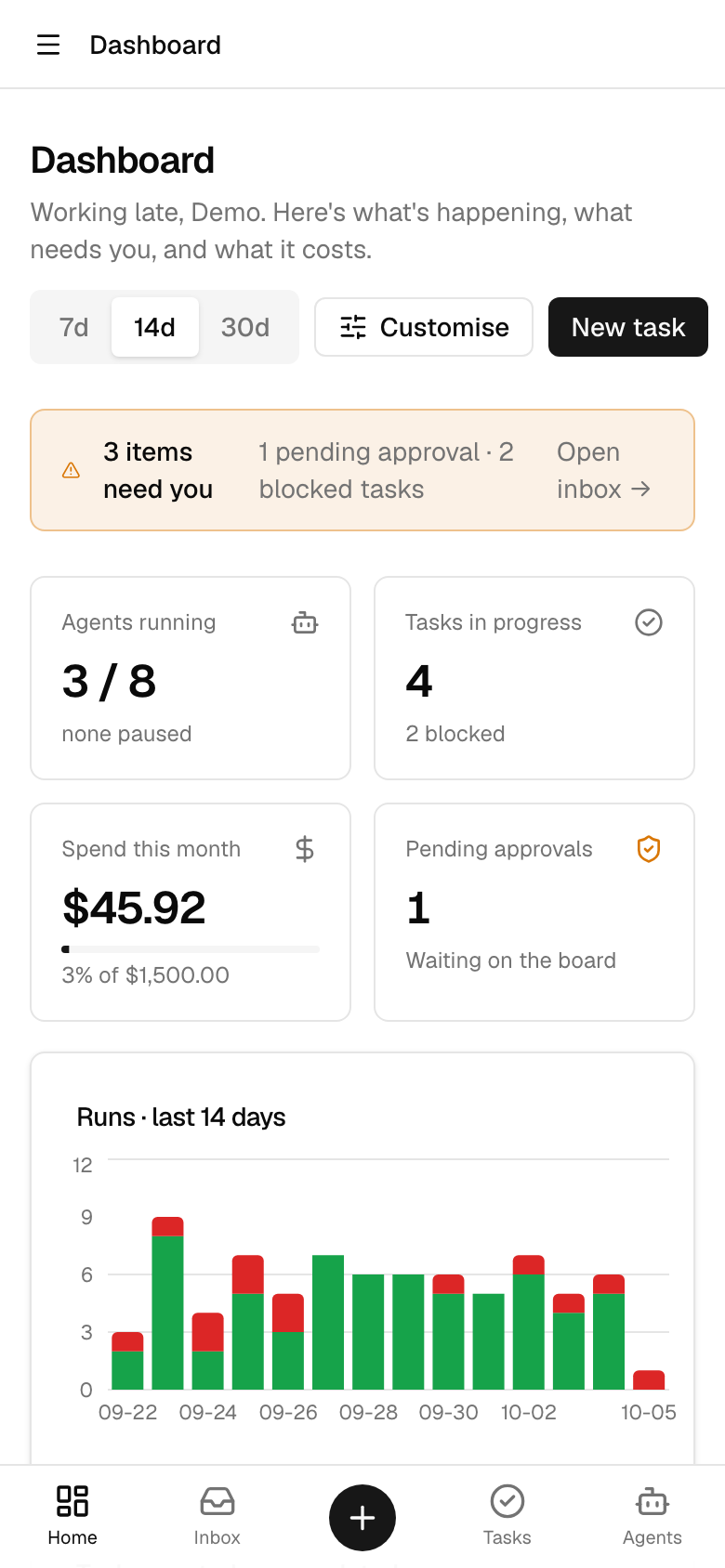
Screens refresh themselves from live updates, so you rarely need to reload. See Keyboard and command palette for shortcuts.
Routes at a glance
| Route | Screen | The question it answers |
|---|---|---|
/ | Public homepage (signed out). Signed in, it redirects to your first company's dashboard, or to /new-company if you have none. | What is SAT? |
/login | Sign in or sign up | How do I get in? |
/forgot-password, /reset-password | Password reset | How do I get back in? |
/new-company | Start your company | Where do I start? |
/c/{companyId}/dashboard | Dashboard (also /c/{companyId}) | What is happening, and what does it cost? |
/c/{companyId}/inbox | Inbox | What needs me? |
/c/{companyId}/tasks | Tasks | What work exists, and where is it? |
/c/{companyId}/tasks/{taskRef} | Task detail | What is the state of this piece of work? |
/c/{companyId}/projects, /projects/{projectId} | Projects and project detail | How is each body of work doing against its budget? |
/c/{companyId}/goals | Goals | What are we working towards, and how far along are we? |
/c/{companyId}/routines | Routines | What recurring work happens on a schedule? |
/c/{companyId}/agents, /agents/{agentId} | Agents and agent detail | Who is on the payroll, and what are they doing and spending? |
/c/{companyId}/org | Org chart | Who reports to whom? |
/c/{companyId}/runs/{runId} | Run detail | What exactly did the agent do in this run? |
/c/{companyId}/approvals | Approvals | What decisions are waiting for the board? |
/c/{companyId}/costs | Costs | Where is the money going? |
/c/{companyId}/activity | Activity | Who changed what, and when? |
/c/{companyId}/settings | Settings | How is the company and my account set up? |
| anything else | "Nothing here" |
A company you are not a member of fails to load, because the API answers 404 for it. Visiting a company route while signed out sends you to /login?next=… and back after you sign in.
Signing in and getting started
Homepage (/). The public page explains the product. Sign in opens a sheet with the same form as /login.
Sign in and sign up (/login). One form switches between "Welcome back" (email and password) and "Create your account" (name, email and password of at least 8 characters). Forgot password? carries the typed email over to /forgot-password. See Account.
Password reset. /forgot-password asks for your email and confirms with "Check your email". The emailed link opens /reset-password, where you choose a new password (8 to 128 characters).
Start your company (/new-company). Name, mission, task prefix (for example NF) and monthly budget. Create company takes you to Agents with the hire dialog open, because the first thing a company needs is a CEO. See Companies.
Dashboard
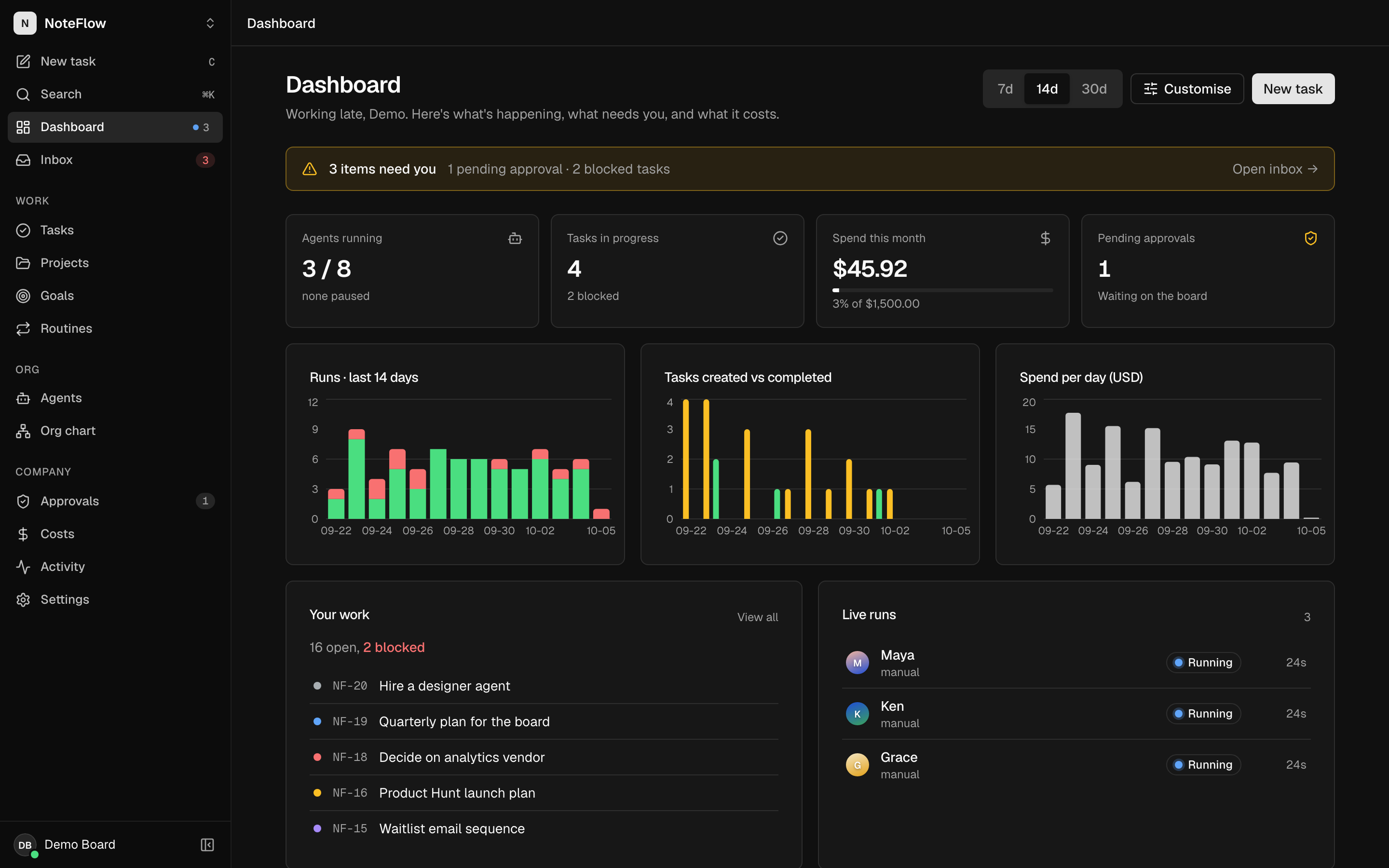
Key numbers (agents running, tasks in progress, spend this month against the company budget, pending approvals), trends over 7, 14 or 30 days, your open tasks, live runs, tasks by status and recent activity. A banner links to the inbox when approvals or blocked tasks are waiting. Customise reorders and hides cards. Details: Dashboard.
Inbox
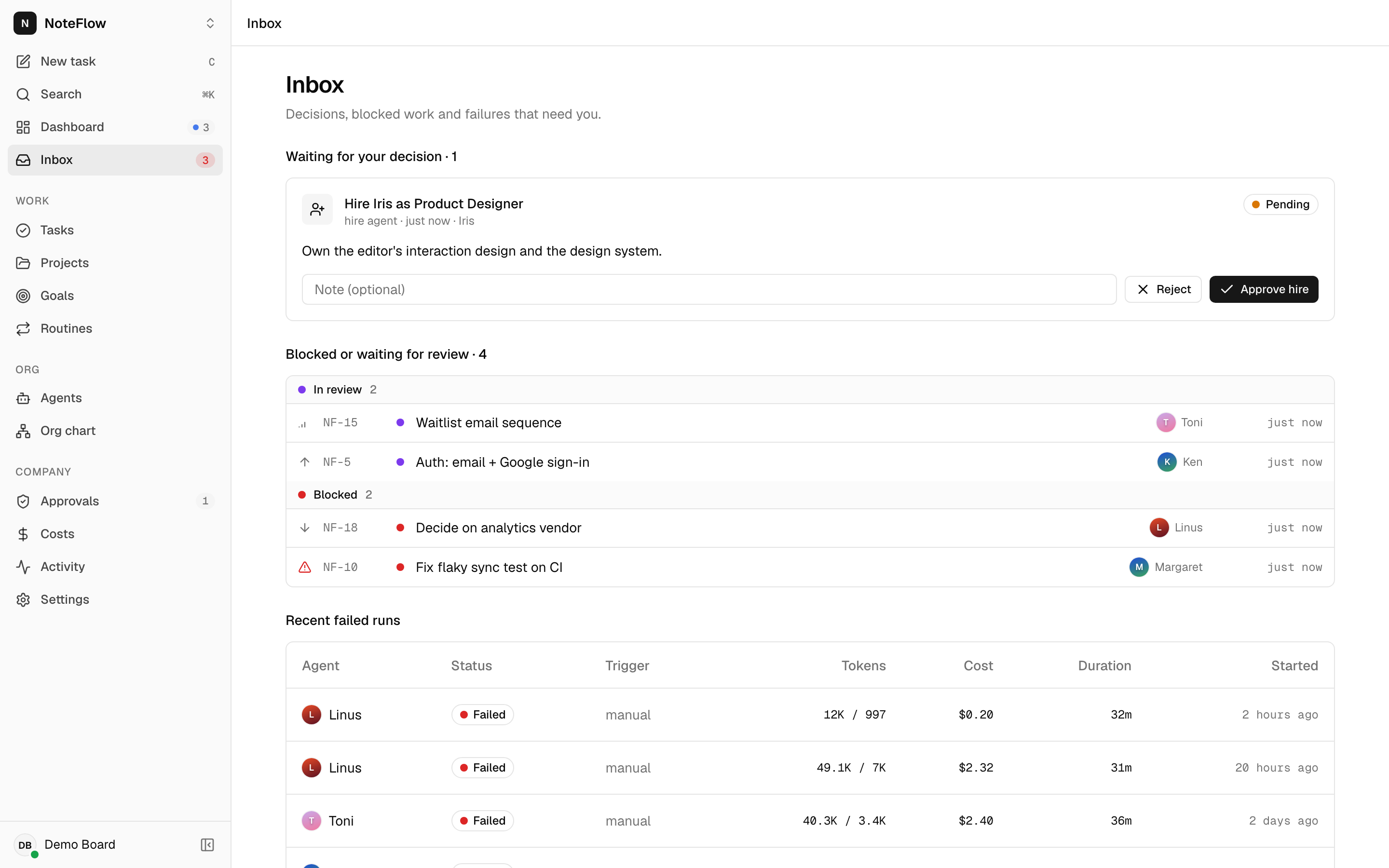
Pending approvals as decision cards, tasks that are blocked or in_review, and the 10 most recent failed runs. Shows "Inbox zero" when nothing needs you. Details: Inbox.
Tasks
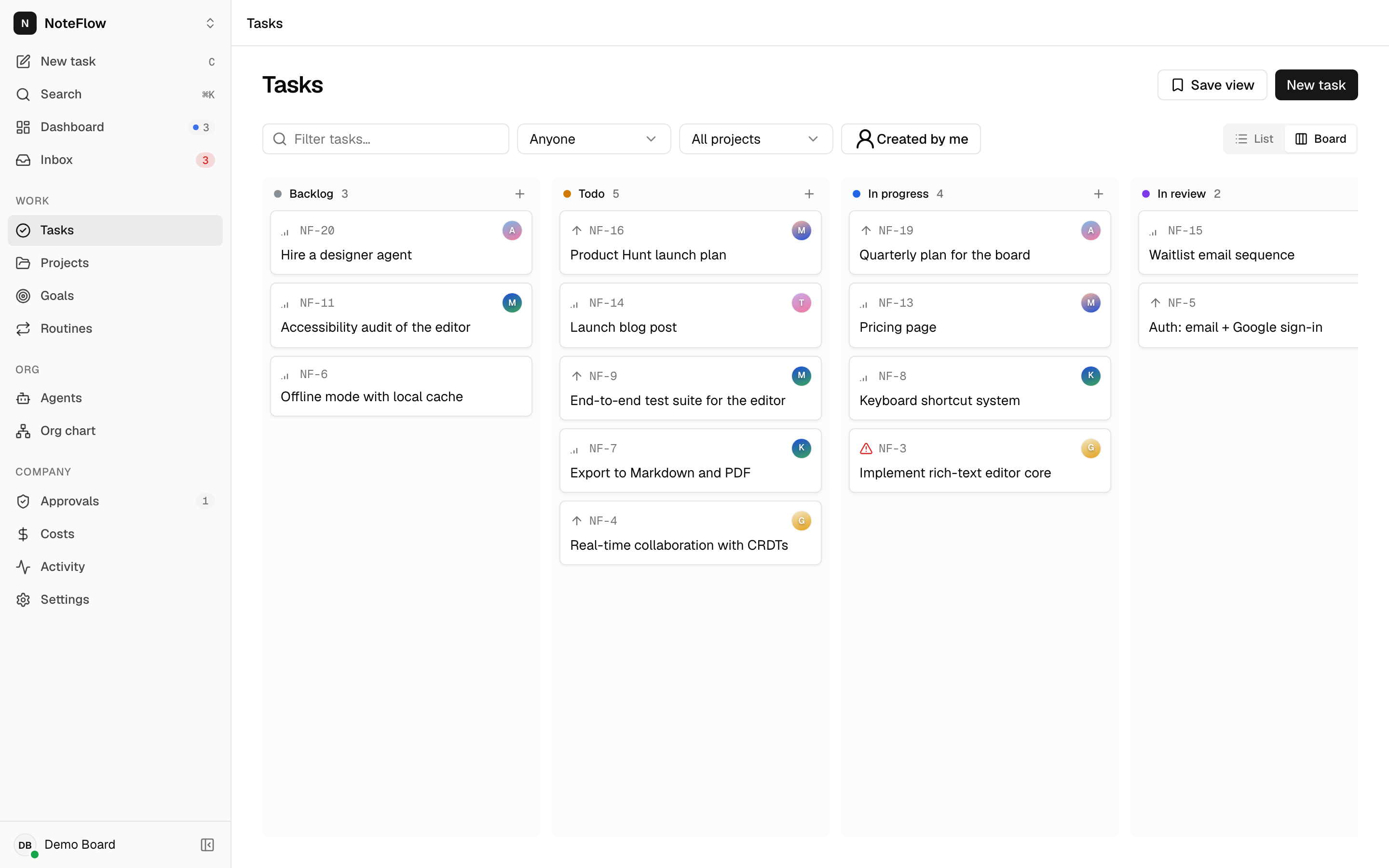
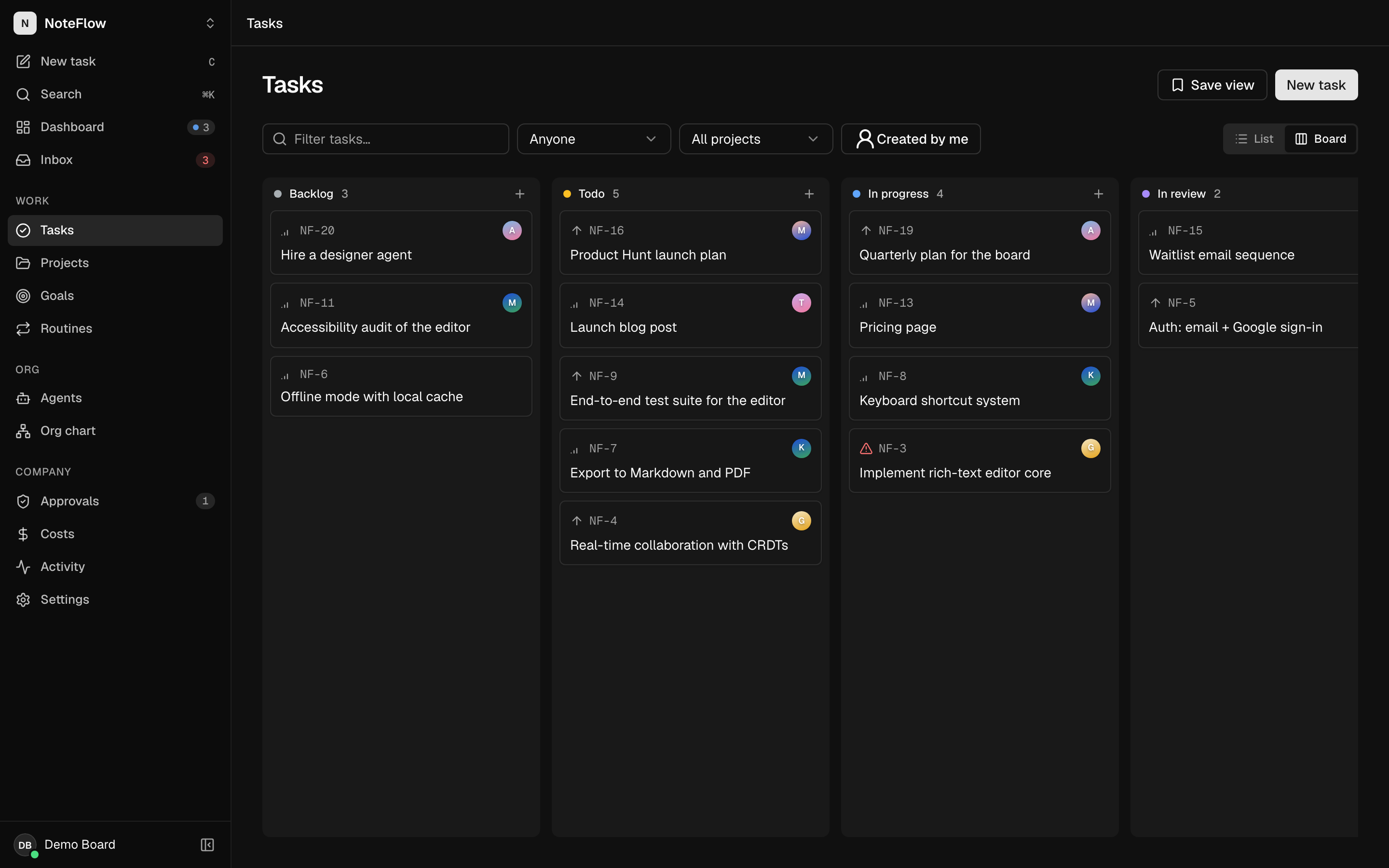
All tasks with filters for text (title and description), status (list view only), assignee, project and Created by me. List groups tasks by status; Board shows columns from backlog to done that you can drag cards between to change status and order. Save view names the current filters so they appear in the sidebar and command palette. New task opens the new task dialog, pre-filled with the assignee and project you filtered on. In the list, J and K move the selection and Enter opens it. Filters live in the URL, so you can share a link. See Tasks and Views and preferences.
Task detail
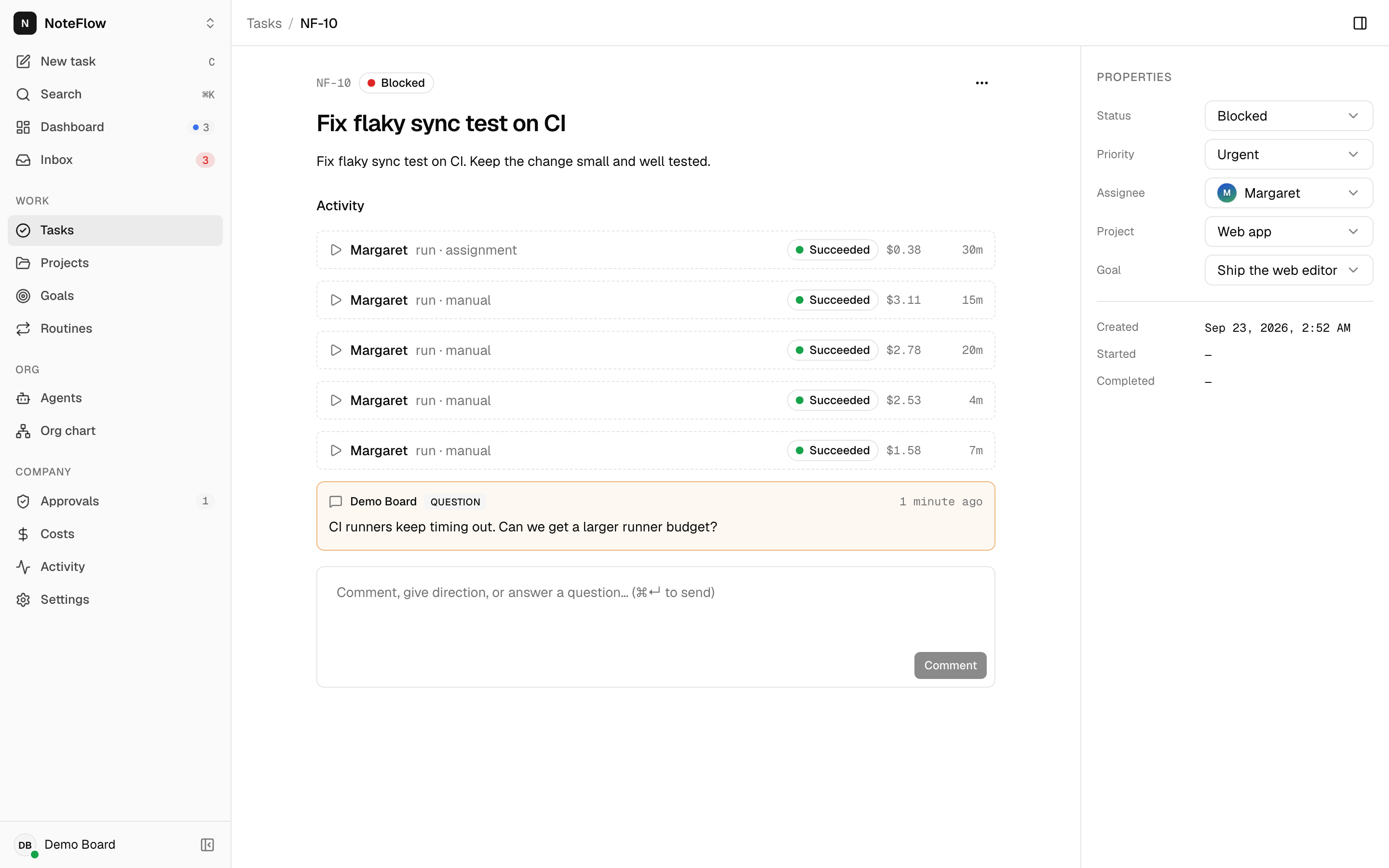
The task key and status, the title and description (select to edit in place), and a thread of comments, questions and plans from people and agents with a composer at the bottom. The properties panel sets Status, Priority, Assignee, Project and Goal and shows when the task was created, started and completed. Reassigning to an available agent queues a run. The … menu deletes the task. ] hides or shows the panel on wide screens; on narrow screens properties appear above the thread.
Projects and project detail
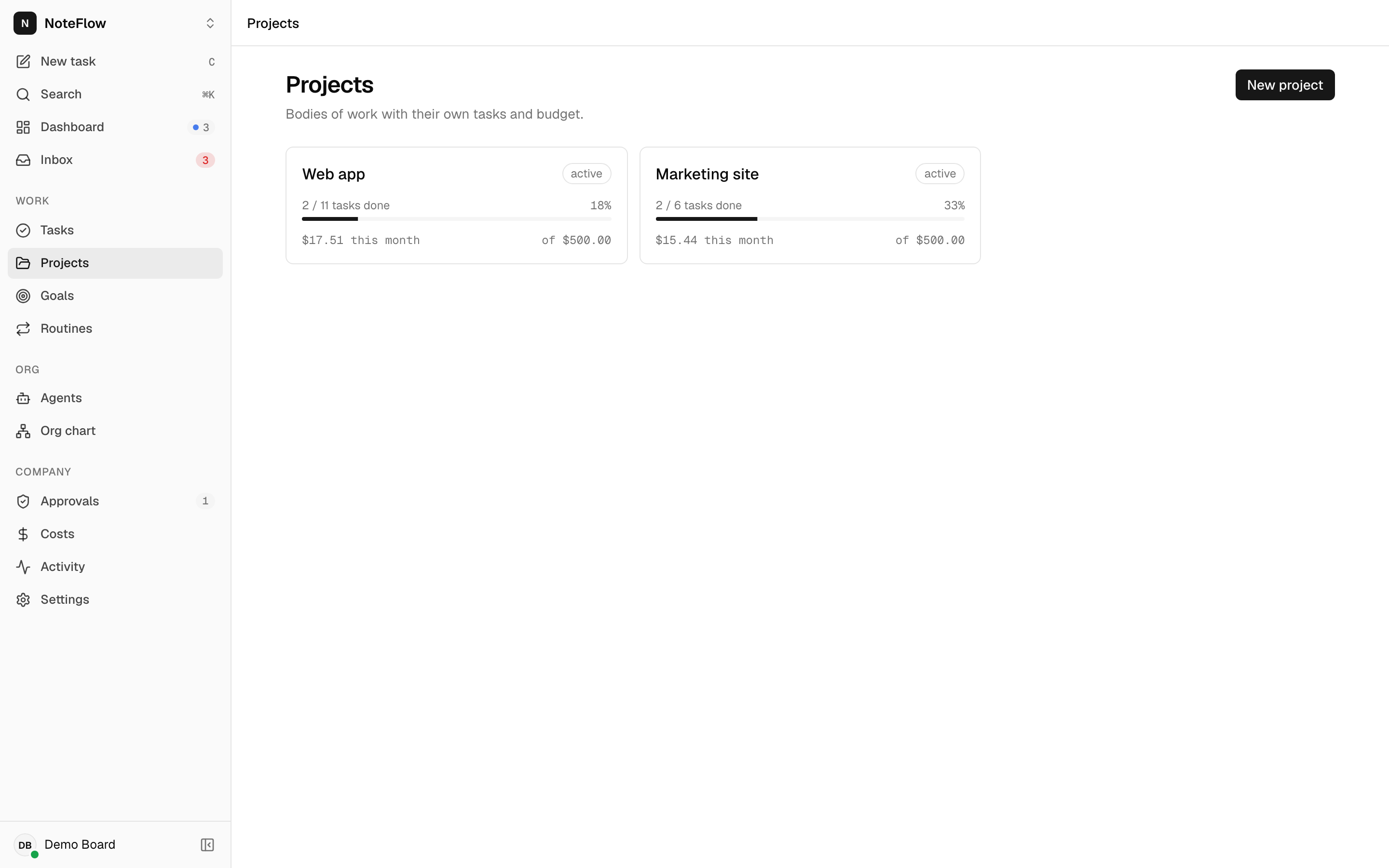
Projects lists each project with task progress and spend this month. New project asks for a name, description, repository and budget. A project's page shows its status (change it with the selector: active, paused, completed, archived), a Repository link, progress, Spend this month against its budget, its tasks and New task. You can pin a project to the sidebar. See Projects.
Goals
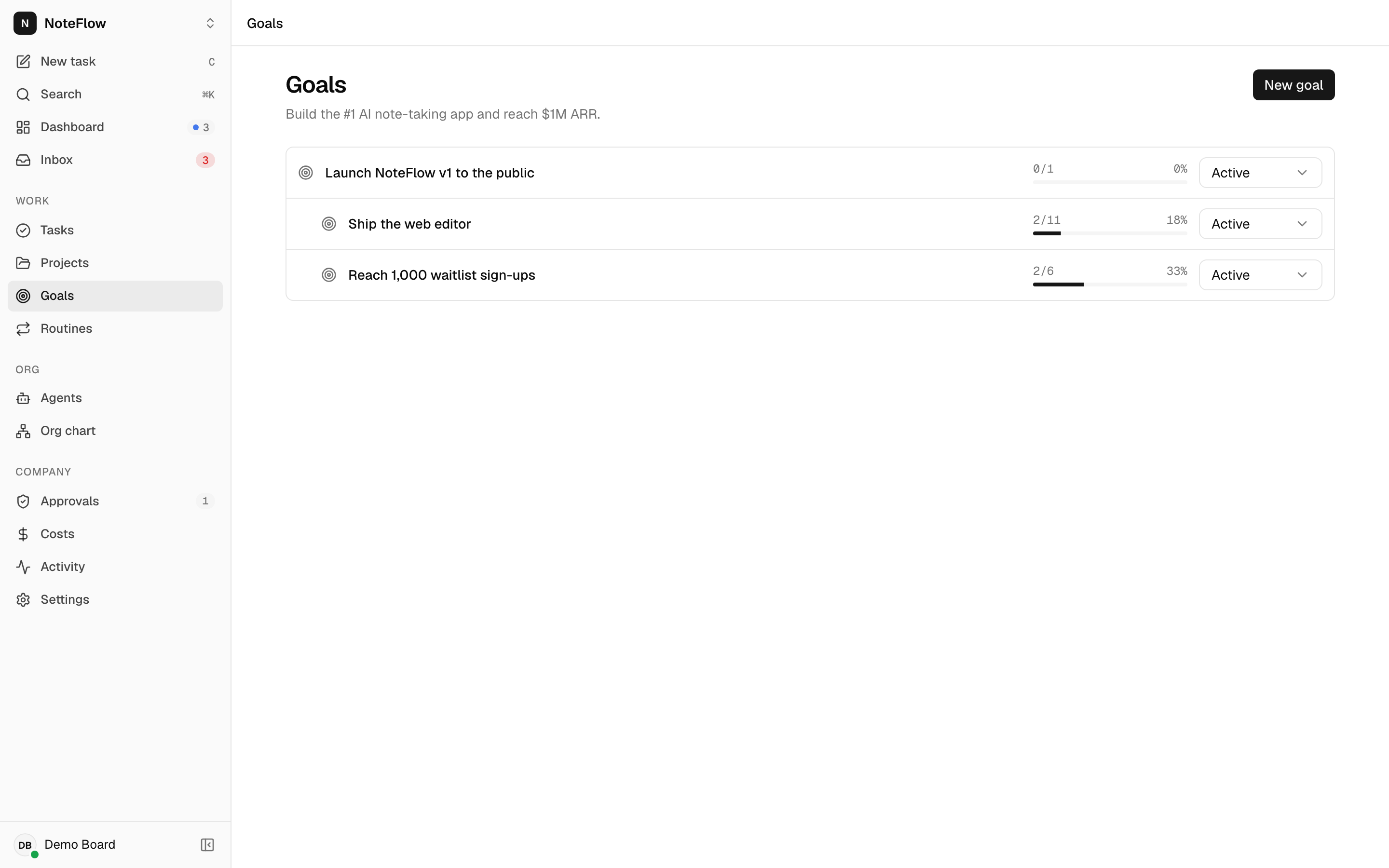
The goal tree, with the company mission as the page description. Each goal shows its status (change it inline) and a progress bar of how many of its tasks are done, with sub-goals nested below. New goal asks for the goal, a description and Part of (its parent, or none for a top-level goal). Owners and target dates are set through the CLI or API. See Goals.
Routines
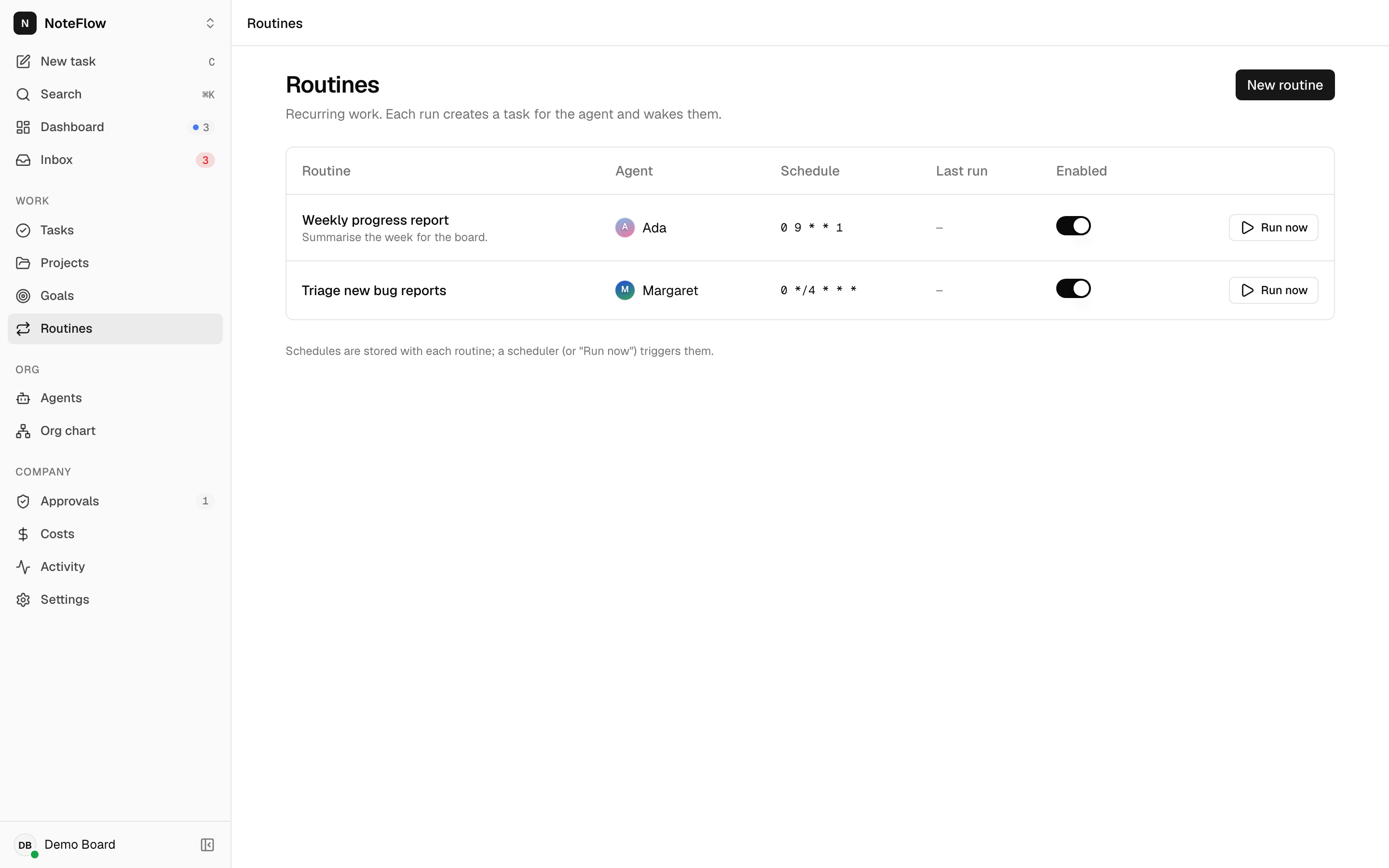
Recurring work: title, agent, cron schedule, last run and an Enabled switch. Run now triggers a routine and offers to open the task it created. New routine creates one. Editing and deleting routines need the CLI or API. See Routines.
Agents and agent detail
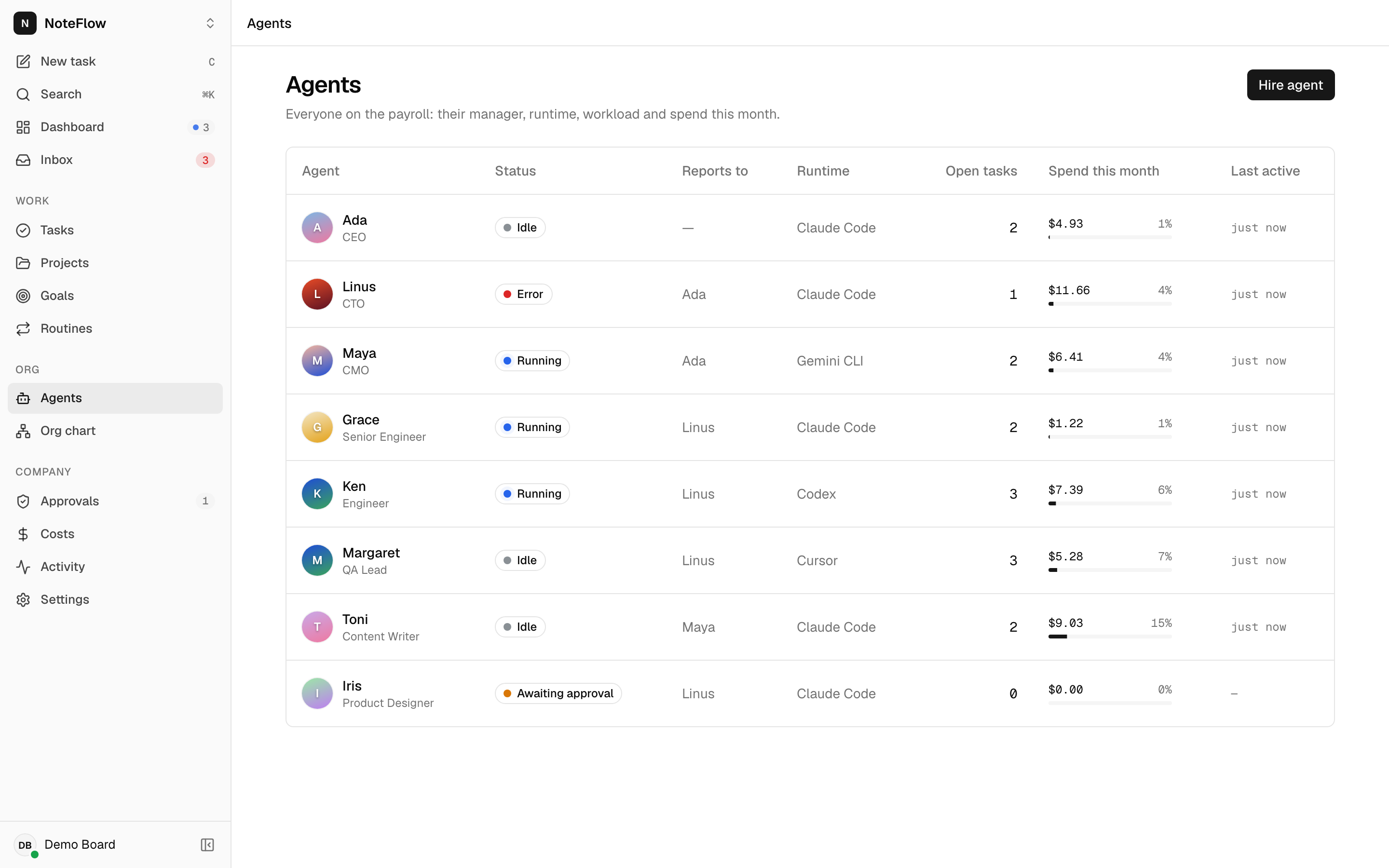
Agents lists everyone on the payroll with status, manager, runtime, open tasks, spend this month against budget and last activity. J, K and Enter navigate the list. Hire agent opens the hire dialog (name, title, role, runtime, manager, instructions, monthly budget, heartbeat cron and Send through approval).
An agent's page shows its status and title, its manager and reports, and actions: pin, Assign task, Wake, Pause or Resume, and Terminate. Notices explain when it is waiting for approval or paused. Cards show open tasks, runs and success rate over the last 50 runs, and spend this month. Tabs list its Tasks, Runs, Instructions and Activity. The properties panel edits manager, role, runtime, budget and heartbeat. See Agents.
Org chart
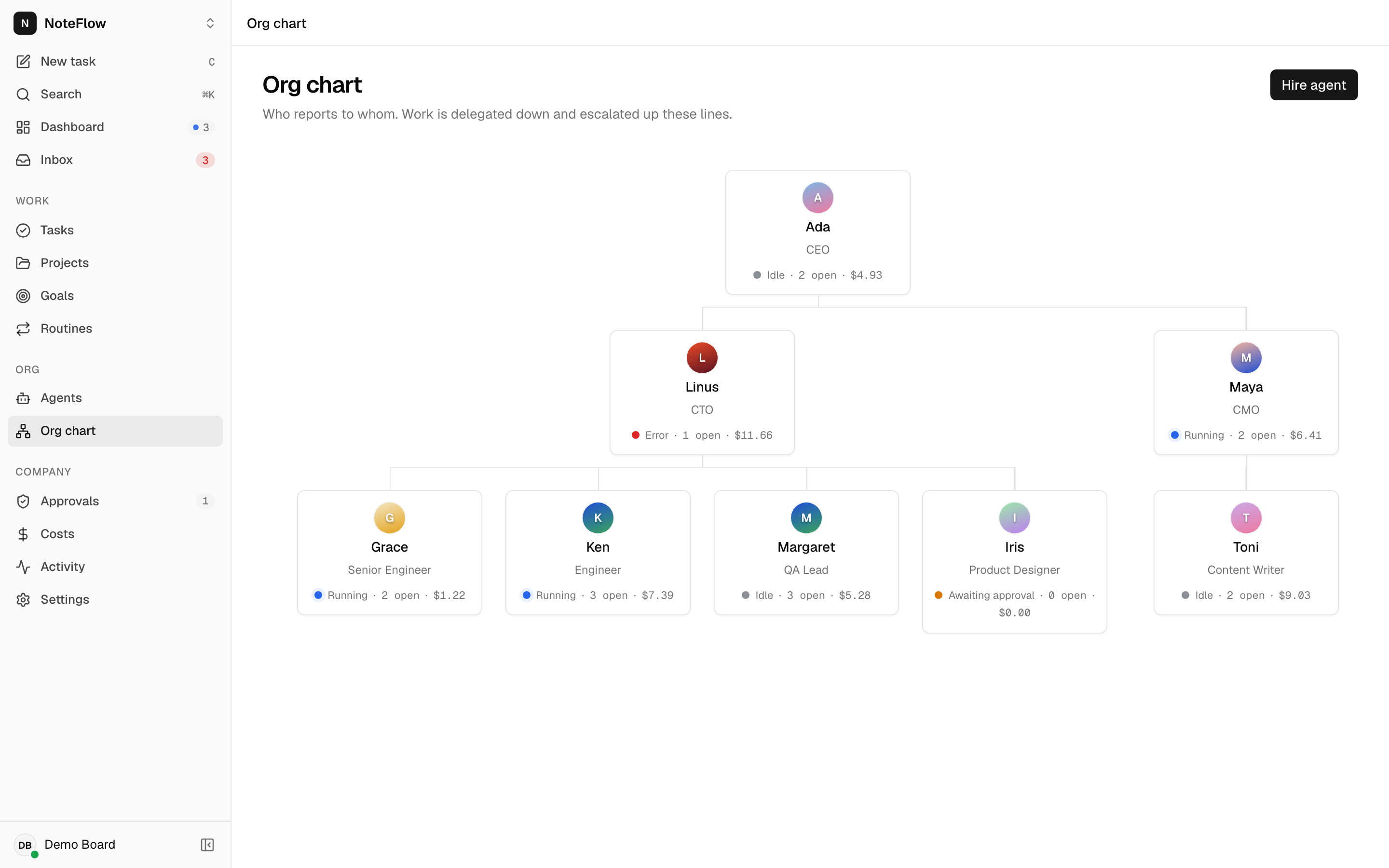
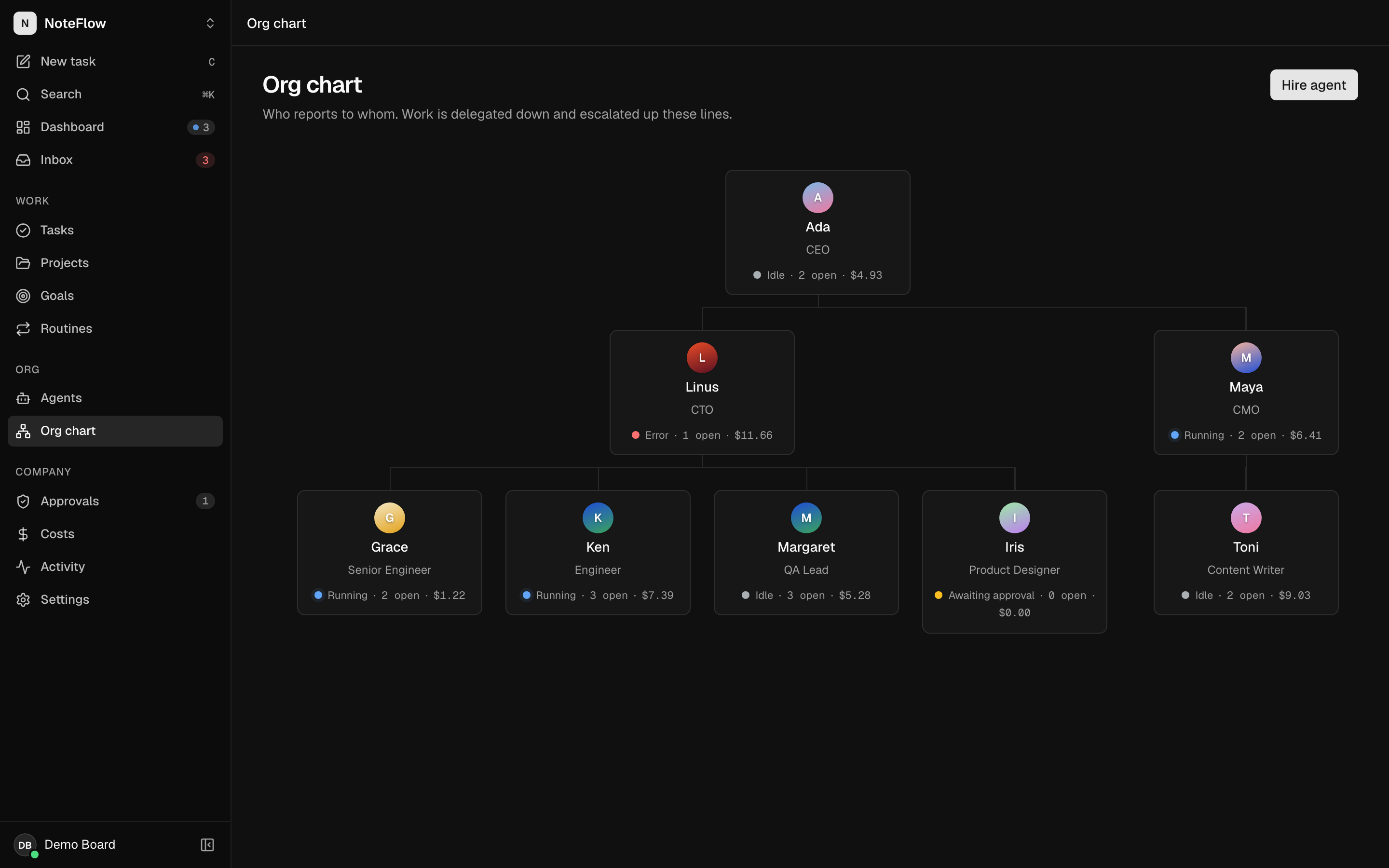
The reporting tree. Each card links to the agent and has a button to hire a report directly under that agent. See Org chart.
Run detail
Opened from live runs, an agent's runs or the inbox. Shows the agent and trigger, a link to the task, started time, duration, tokens and cost, the runner's summary or error, and the transcript, which updates live while the run is queued or running. Cancel run stops it. See Runs.
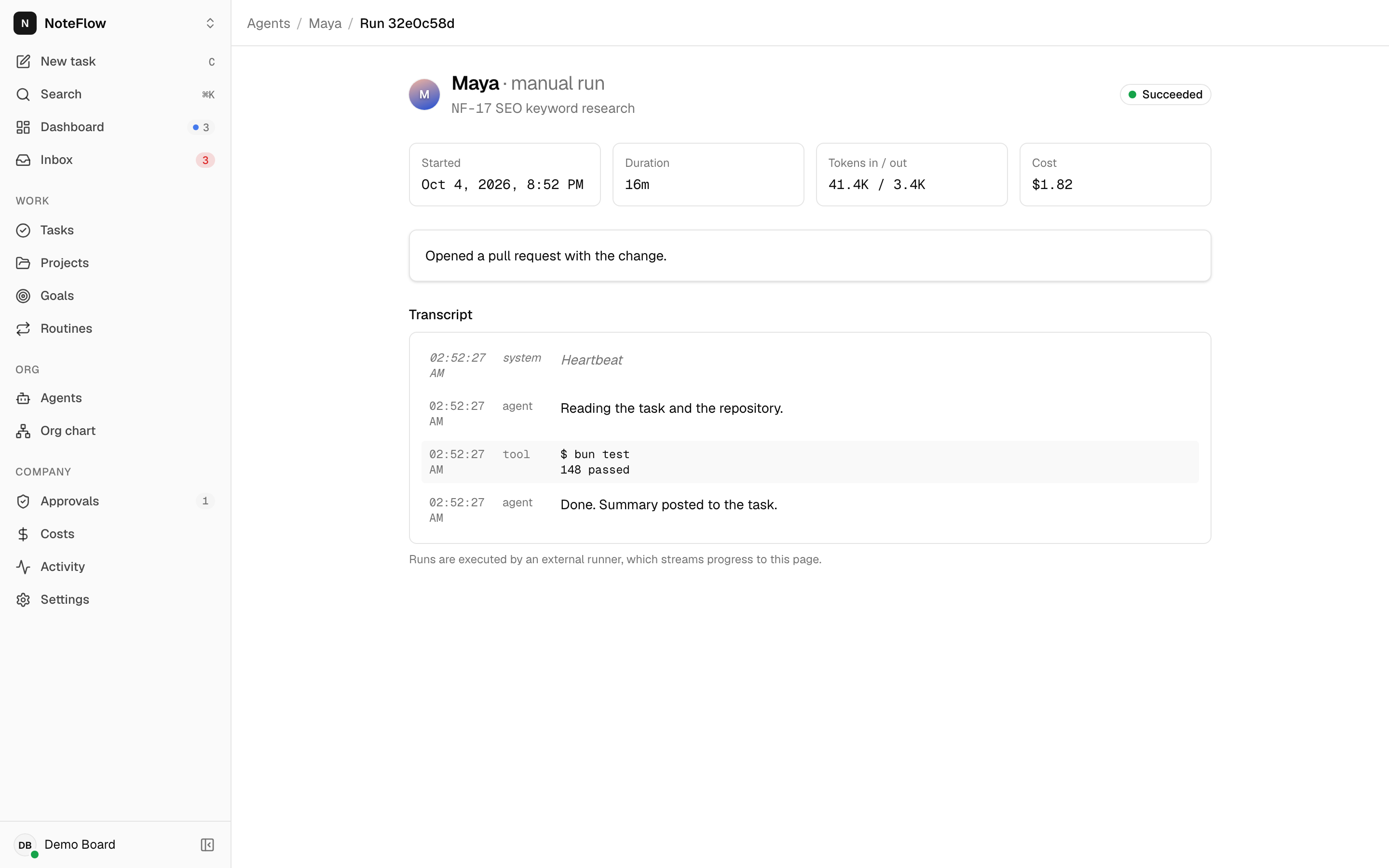
Approvals
Hires and budget overrides waiting for the board, filterable by Pending, Approved, Rejected and All. Approve with an optional note (and, for budget overrides, a new monthly budget) or reject. See Approvals.
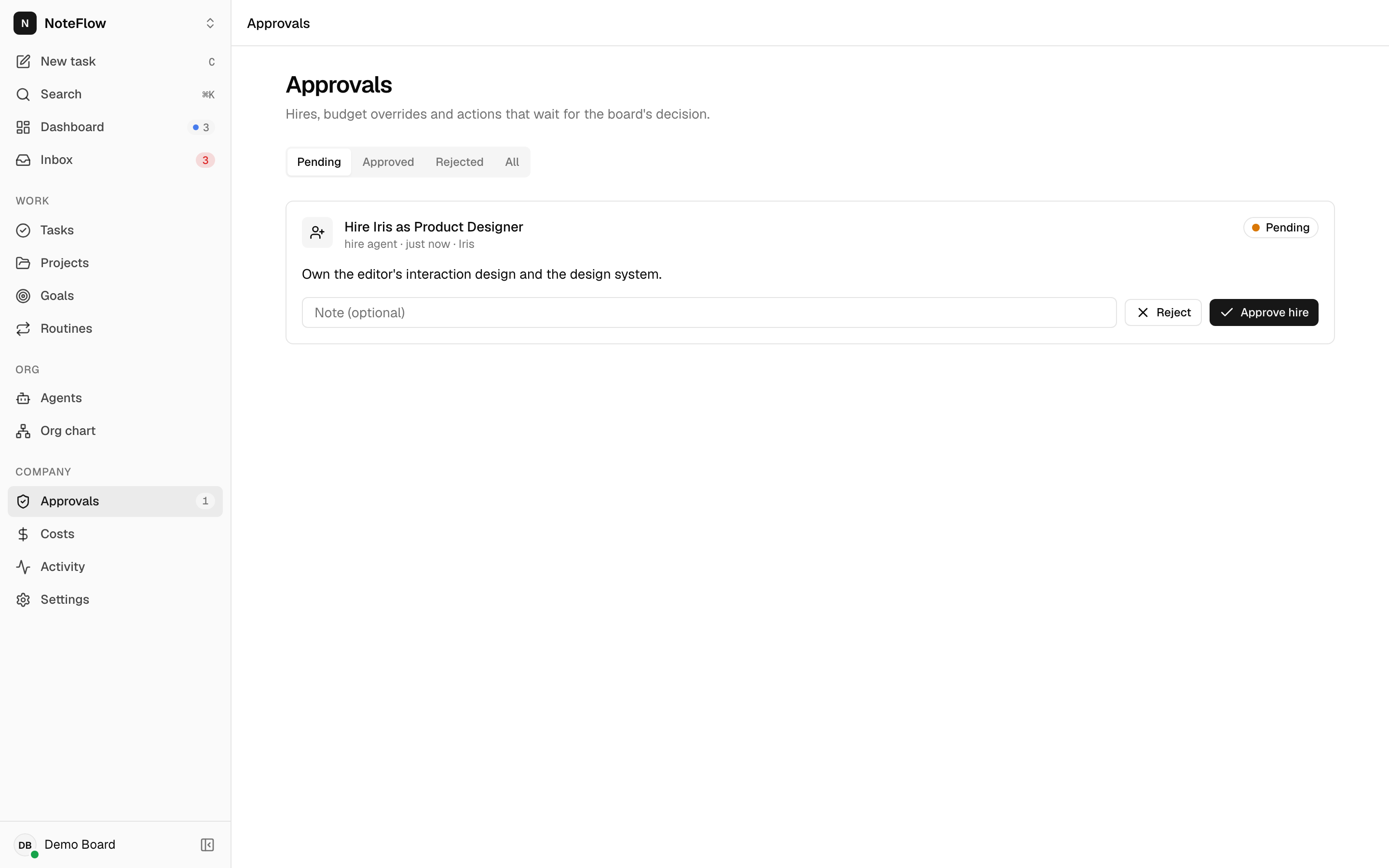
Costs
Total spend, company budget and percent used for a month, with spend, runs and tokens by agent and by project against their budgets. Arrows move between months. See Budgets and costs.
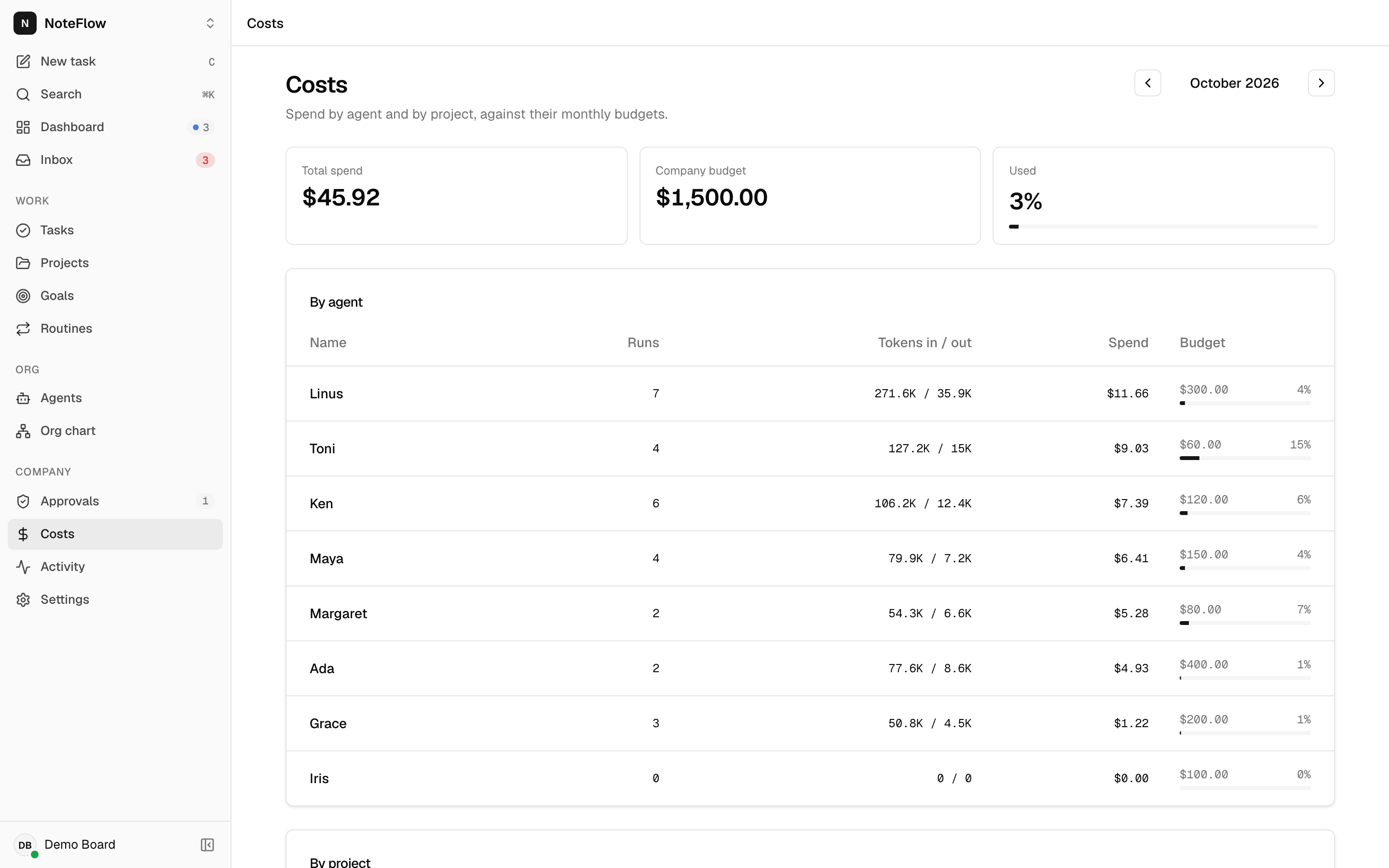
Activity
Every change, newest first, filterable by entity type, with Load older for paging. See Activity log.
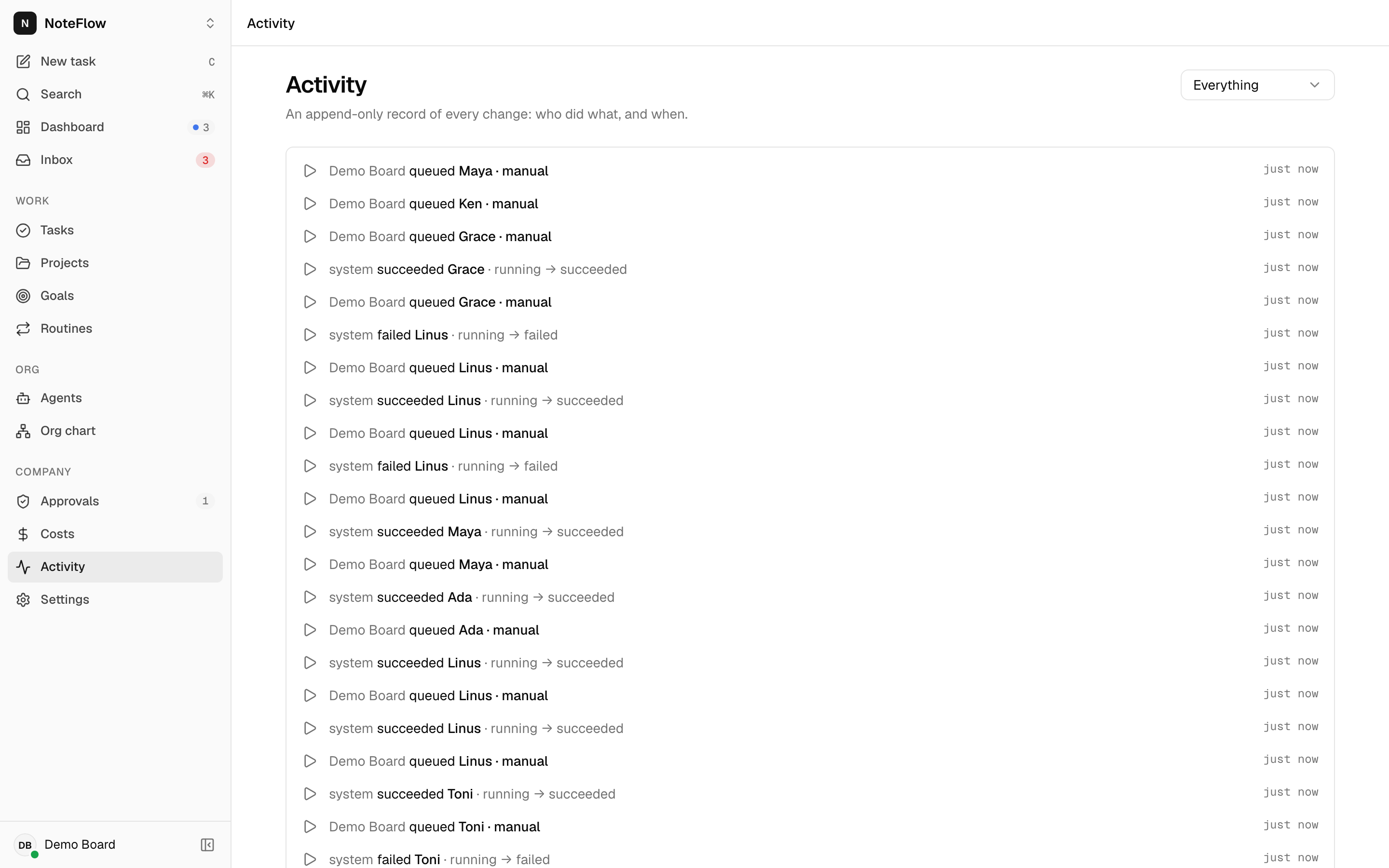
Settings
- Profile: your name, picture URL and avatar colour.
- Company: name, mission and monthly budget (owners and admins only) and the read-only task prefix.
- Members: who has access, their role and when they joined.
- Appearance & region: theme, density, accent, language and region, time zone and date format.
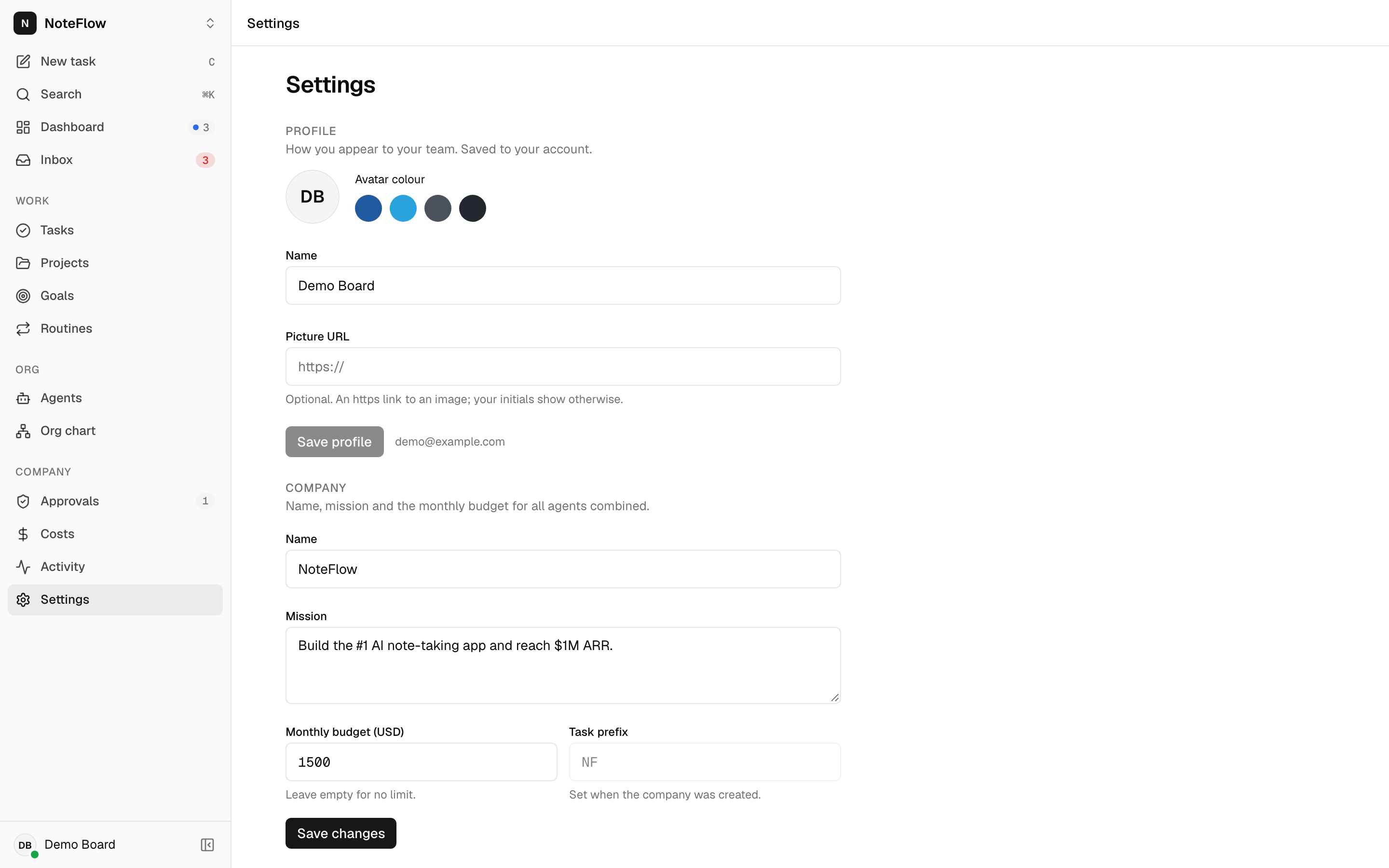
See Account and Views and preferences.
Account menu
Select your avatar at the bottom of the sidebar for your name and email, the theme (Light, Dark, System), Keyboard shortcuts, Documentation, GitHub repository and Sign out.